

Passwords and account credentials are compromised on a daily basis. Some of these breaches result in tens of millions of accounts breached and information being leaked online. In 2008, a data breach at MySpace resulted in 360 million accounts being exposed and in 2019, Verifications.io (email verification service) suffered a data breach exposing 763 million email accounts. Locally, Experian suffered a breach in late 2020 exposing PII of 24 million South Africans.
Oftentimes, passwords are among the data exposed. These leaked passwords are collected by bad actors and used in brute-force attacks against companies, government organizations and individuals alike. haveibeenpwned.com runs a free, user-friendly, searchable repository used to determined if a certain email account or password has been leaked online. Have a look at their website to learn more about recent data breaches.
Since it is always ill-advised to enter your password in a random box on the internet, here are 5 easy steps to do so without the risk of compromising your password.
Step 1:
If you are running Windows, open Command Prompt or Powershell…
Copy the text in the box below, paste into Powershell and press Enter.
function Get-StringHash {
    [CmdletBinding()]
    param (
        [Parameter(Mandatory = $true)]
        [String] $String,
        [Parameter(Mandatory = $true)]
        [ValidateSet("SHA", "SHA1", "System.Security.Cryptography.SHA1", "System.Security.Cryptography.HashAlgorithm", "MD5", "System.Security.Cryptography.MD5", "SHA256", "SHA-256", "System.Security.Cryptography.SHA256", "SHA384", "SHA-384", "System.Security.Cryptography.SHA384", "SHA512", "SHA-512", "System.Security.Cryptography.SHA512")]
        [String]
        $HashName = "MD5"

    )

    $StringBuilder = New-Object System.Text.StringBuilder   [System.Security.Cryptography.HashAlgorithm]::Create($HashName).ComputeHash([System.Text.Encoding]::UTF8.GetBytes($String))| % {
        [Void]$StringBuilder.Append($_.ToString("x2"))
    }
    Write-Output $StringBuilder.ToString()
}
Step 2:
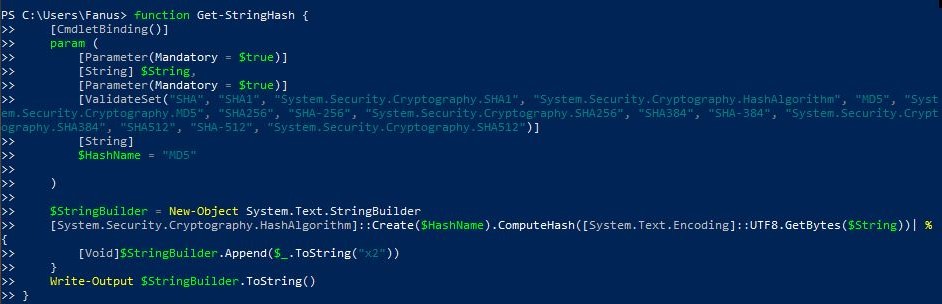
In Powershell, type in “function Get-StringHash” and press Enter. The text in the screenshot below should appear. This is a function to convert a given string (in our case, a password) into a hash string. A hash is a one-way encryption function.
Step 3:
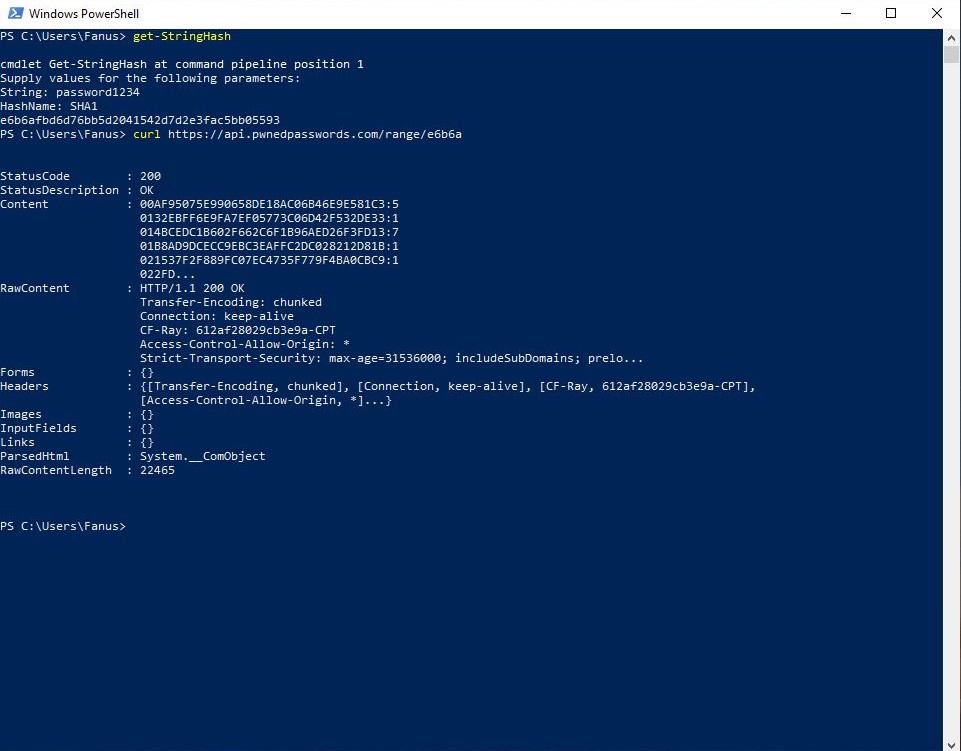
Next, type in a String. In this example we’ll use “password1234“
After pressing enter, you’ll be prompted to enter a HashName. We’ll use “SHA1“.
The resulting hexadecimal SHA1 hash string is given as:
“e6b6afbd6d76bb5d2041542d7d2e3fac5bb05593“
Step 4:
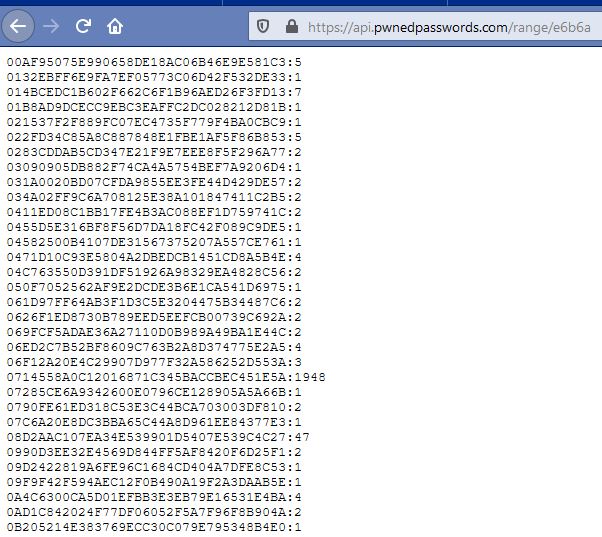
Navigate to the following URL and use the first 5 haxadecimal digits of the calculated hash from Step 3 in the URL address: https://api.pwnedpasswords.com/range/[your first 5 numbers here]
From our example the URL would be: api.pwnedpasswords.com/range/e6b6a
In the screenshot below, you can see, a few thousands results appear. One of these passwords has even been leaked 1948 times.
Step 5:
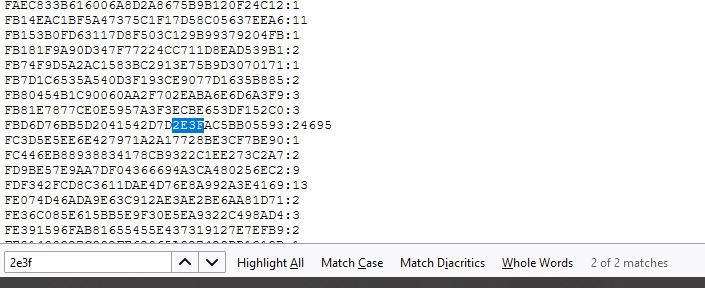
Let’s narrow down these results and find your exact hash. A simple “Ctrl+F” will do.
Enter 4 more sequential hexadecimal digits from your hash. From “e6b6afbd6d76bb5d2041542d7d2e3fac5bb05593″, we’ll use “2e3f“.
Result: “password1234” has been leaked 24 695 times and is obviously not a good choice for a password.
 fscyber.co