
browser settings
Most modern browsers have customizable settings that allow you to improve the security and privacy of your online activity. In Mozilla Firefox, this is done by doing the following (without negatively impacting the user experience or disabling key website features):

Open the “Menu” icon directly under the close icon and go to “Options”, highlighted in grey.
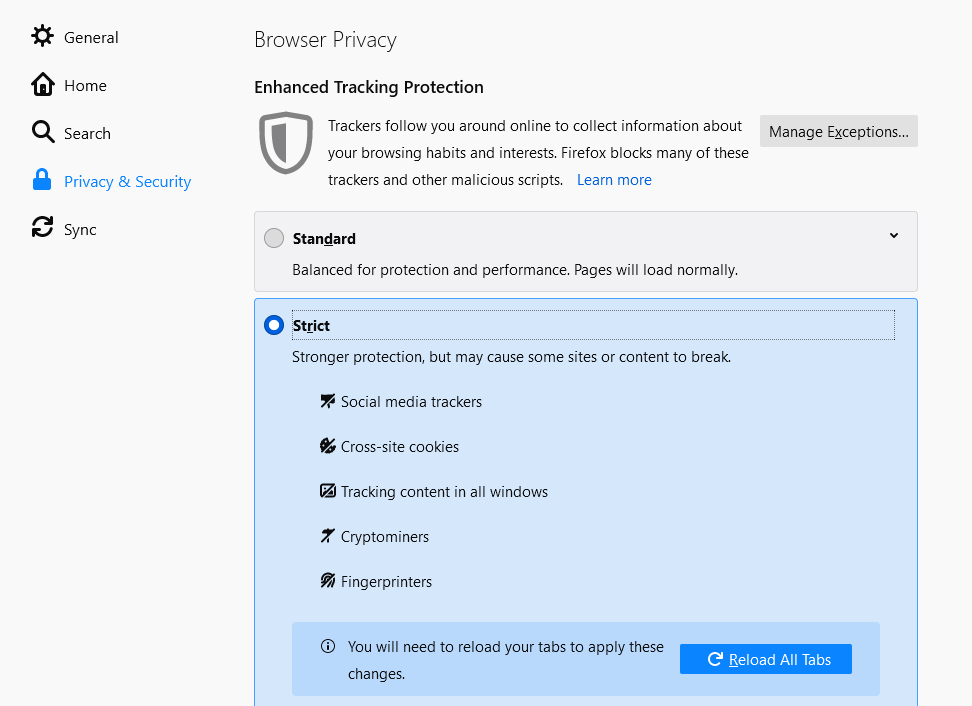
Navigate to “Privacy & Security” and under Enhanced Tracking Protection, select “Strict”. Note that if websites are missing content, or features, revert to “Standard” to restore functionality.
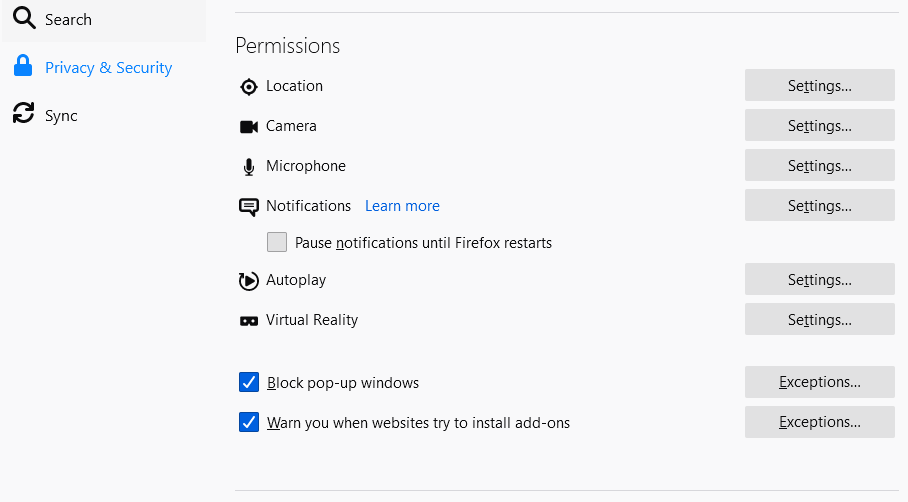
Scroll to “Permissions” and make sure that location, camera, etc. are set either ask first, or block access. Exceptions can be added under Settings…
Ensure that the “Block pop-up windows” and “Warn you when websites try to install add-ons” boxes are checked.
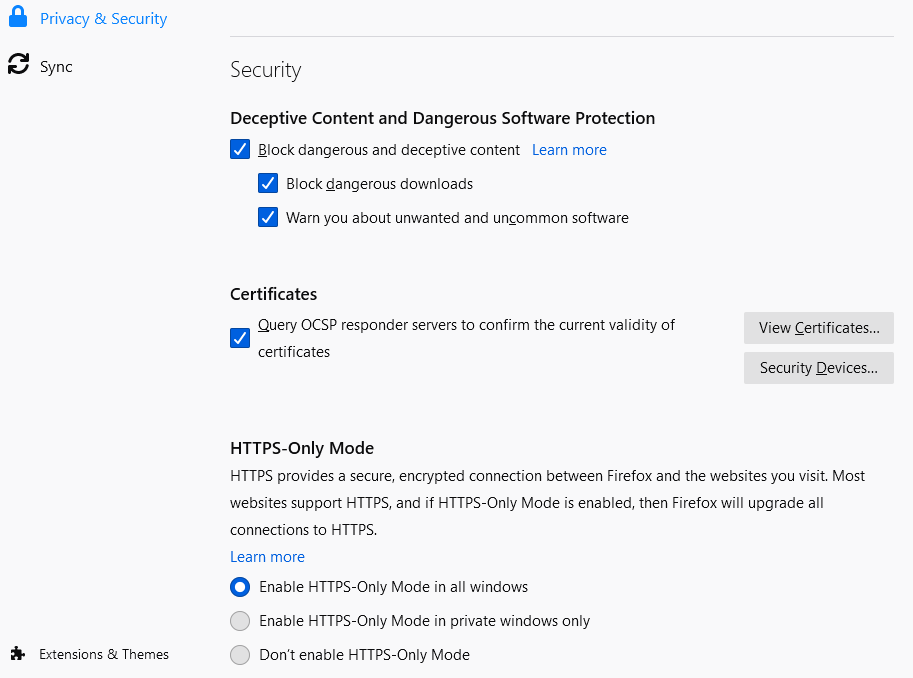
Lastly, under “Security”, select:
- Block dangerous and deceptive content
- Block dangerous downloads
- Warn you about unwanted and uncommon software
- Query OCSP to validates certificates
- Enable HTTPS-only Mode
Add-ons
The following add-ons are verified by Firefox in terms of security and performance and can be added to further enhance privacy and security in your browser.

https everywhere
HTTPS Everywhere works by rewriting all HTTP requests made by and to sites, to encrypted HTTPS requests. Many sites offer some limited support for encryption, but they may default to unencrypted HTTP, or put links to unecrypted pages, in encrypted pages.

ghostery
Ghostery is a built-in ad blocker that removes advertisements from web pages. You can also view and block specific trackers on websites, or anonymize your data where blocking is not possible.

uBlock Origin
uBlock Origin acts as an ad blocker, even though it isn’t one. It blocks content of a wide spectrum which happens to include the function of an ad blocker. uBlock Origin by default blocks ads, trackers and malware sites through a number of tracking, spam, malware and URL blocklists.

clear URLs
This extension removes tracking elements from URLs to protect your privacy when browsing. Websites use tracking elements in the URLs – these tracking elements are not necessary for the website to work correctly and can be removed.
The following URL has tracking elements: https ://www.amazon.com /dp/exampleProduct/ref=sxin_0_pb?__mk_de_DE=ÅMÅŽÕÑ&keywords=tea&pd_rd_i=exampleProduct&pd_rd_r=8d39e4cd-1e4f-43db-b6e7-72e969a84aa5&pd_rd_w=1pcKM&pd_rd_wg=hYrNl&pf_rd_p=50bbfd25-5ef7-41a2-68d6-74d854b30e30&pf_rd_r=0GMWD0YYKA7XFGX55ADP&qid=1517757263&rnid=2914120011
All of the red text in the URL is part of the tracking element and not essential for functionality.

Facebook container
Facebook Container works by isolating your Facebook identity into a separate container that makes it harder for Facebook to track your visits to other websites with third-party cookies. Installing this extension closes your Facebook tabs, deletes your cookies, and logs you out of Facebook.
Mitigating CNAME Cloaking
As modern browsers have been working hard to prevent third-party tracking, advertising companies have been employing techniques to evade the prevention. All major browsers, except Google Chrome, include some kind of third-party tracking prevention effort.
CNAME Cloaking makes it so that it becomes difficult to distinguish between first-party and third-party cookies (the type you want to block). This can result in leaks of user’s sensitive or private information – and happen without their knowledge.
At the moment, Firefox does not have an option to outright block CNAME cloaking, add-ons such as the previously mentioned uBlock Origin, will block these trackers trackers.
If you are using Firefox, make you you are running the latest version, as they constantly improve on features such as their Total Cookie Protection, released in version 86.0.
 fscyber.co